


USB data cables: speeds, length and active cables
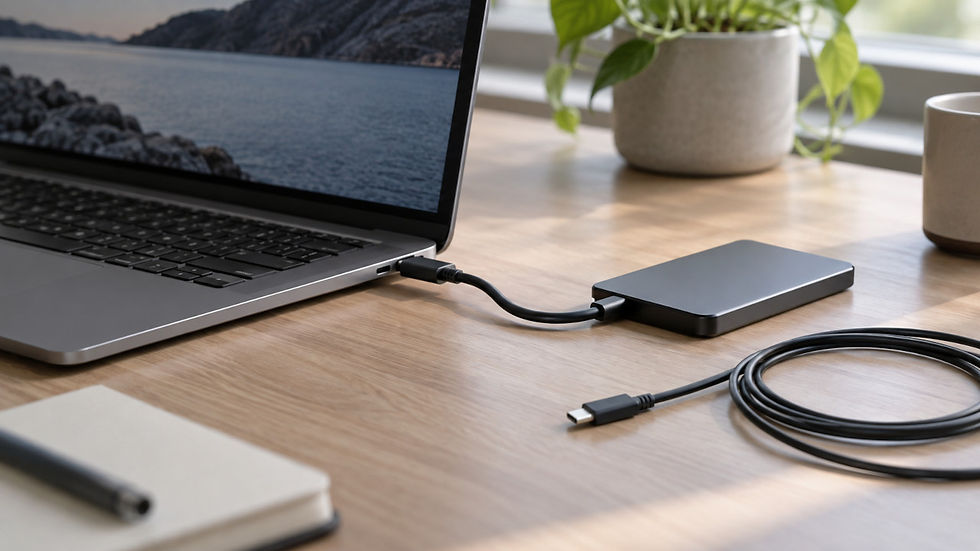
An external SSD, a monitor, and laptop charging can all use the same USB-C connector, but their cable requirements differ. Choosing a cable means understanding not just USB and Thunderbolt speeds, but also length, compatibility, and what “active” means. Especially if you want to make use of your devices’ capabilities, rather than simply find plugs that fit.
USB speeds and their names
USB-IF, the organization that develops the standard, identifies five data speeds as of 2026: 5Gbps, 10Gbps, 20Gbps, 40Gbps and 80Gbps. For consumers, it recommends names such as "USB 40Gbps" and asks manufacturers to keep specification terms off packaging: USB 3.2, USB4 Version 2.0 and SuperSpeed. Older names still appear in marketplace cable descriptions, so it helps to know how they match up:
USB 2.0 - 480 Mbps. The basic level, sufficient for transferring small files.
USB 3.2 Gen 1 - 5Gbps
USB 3.2 Gen 2 - 10Gbps
USB 3.2 Gen 2x2 - 20Gbps
USB4 - 20Gbps / 40Gbps
USB4 Version 2.0 - 80Gbps
A cable reports its speed through its e-marker chip, which records its USB 3.2 Gen 1, Gen 2 or USB4 class. The e-marker therefore lets you identify the cable's speed even without a label. USB-IF logos on cables show speed and power together, for example 40Gbps/240W. A USB-C - USB-C cable that passes the certification program must carry this logo. On USB 2.0 cables, the logo shows only power.
Thunderbolt: how it differs from USB4
Thunderbolt uses the same connector as USB-C, but according to Intel, Thunderbolt certification sets higher minimum requirements for cables, computers, and accessories. Thunderbolt 4 runs at 40 Gbps. Thunderbolt 5 is twice as fast: 80 Gbps in both directions and up to 120 Gbps in Bandwidth Boost mode when there is heavy video traffic. It is built on USB4 Version 2.0, DisplayPort 2.1, and PCIe Gen 4.
A Thunderbolt cable is a USB-C cable, so it can also connect to ordinary ports. However, full Thunderbolt speed and functionality are available only when both the port and the device support the relevant Thunderbolt version. An ordinary USB4 cable without Thunderbolt certification also connects to these ports, but may have limited functionality: early USB4 cables delivered only 20 Gbps instead of 40 Gbps with Thunderbolt 3 devices.
Thunderbolt does have a connection to charging power, but this concerns the ports. Intel states that Thunderbolt 4 supports laptop charging up to 100W, while Thunderbolt 5 supports up to 140W, and up to 240W on some devices. The cable still needs to be selected separately: the 240W cable catalog includes USB 2.0 cables as well as USB4 and Thunderbolt 5 cables. For example, Amazon Basics USB-IF Certified TBT4 240W combines 40 Gbps and 240W, while Cable Matters [Intel Certified] TBT5 PD3.1 combines 240W and 80Gbps.
USB and Thunderbolt backward compatibility
Newer USB and Thunderbolt generations are backward compatible: the port, cable and device operate at the highest speed supported by all three. According to USB-IF, USB4 is compatible with USB 3.2, USB 2.0 and Thunderbolt 3. Thunderbolt 4 ports are compatible with earlier Thunderbolt and USB versions, including Thunderbolt 3 devices and cables. Thunderbolt 5, according to Intel, is fully backward compatible.
What this means in practice:
The slowest component determines the speed. A Thunderbolt 5 drive connected to a Thunderbolt 4 port runs at Thunderbolt 4 speed, while a USB4 device in a 10Gbps port runs at 10Gbps. Everything works, but the speed cannot exceed the slowest component's capabilities.
The cable also participates in negotiation. A USB 2.0 cable limits any device to 480 Mbps, and according to USB-IF, 80 Gbps requires a cable certified for 80Gbps.
USB4 mode will not activate without an e-marker response. If the cable does not respond to the e-marker query, the host does not enable USB4 and connects to the device using the ordinary USB protocol.
An older cable may perform better than its rating. The USB Type-C specification notes that a cable rated for 5Gbps generally also works in USB4 mode at 20 Gbps, although this mode is neither tested nor certified on that cable. This is no guarantee.
Compatibility does not mean identical features. Thunderbolt certification sets higher minimum requirements, so a USB4 port without Thunderbolt certification may offer fewer features than a Thunderbolt port.
What speed do you need?
Transfer speed is limited by the slowest component: the port, device or cable. A 40Gbps cable will not speed up an external SSD with a 10Gbps interface, but a 10Gbps cable will limit a 40Gbps SSD.
Charging, synchronization, and small files - USB 2.0 is sufficient.
External SSDs and backups - choose a cable rated at least as fast as the SSD's port.
A monitor connected via USB-C - you need a port on your PC or laptop that supports DisplayPort and a cable that carries DisplayPort Alternate Mode. Such cables start with USB 3.1; a USB 2.0 cable cannot carry video.
Docking stations, external graphics cards, and Thunderbolt devices: you need a Thunderbolt/USB4 cable that meets the device's specifications.
Why cable length is limited
USB cable length is limited for three reasons. First, timing. The host sends a data packet and waits for a reply. The longer the cable, the later the reply arrives; if the cable is too long, the host treats the packet as lost. Second, attenuation: a signal in copper weakens with distance, increasingly so at higher frequencies. Third, interference from neighboring wires and external sources. Charging cables also face resistance: the longer the cable, the greater the voltage drop, as we discussed in the article about charging cables.
The figures depend on speed. For USB-C - USB-C cables, the USB Type-C specification provides reference values, which it calls practical lengths rather than strict limits:
USB 2.0 - up to 4 m. For classic USB 2.0 cables with USB-A and USB-B connectors, Eaton gives a limit of 5 m.
5Gbps - up to 2 m.
10Gbps - up to 1 m.
USB4 40Gbps - up to 0.8 m.
Manufacturers sometimes quote longer lengths: for example, Eaton lists up to 3 m for 10Gbps and 20Gbps. For USB-C - USB-C cables, the specification table is the better guide.
The picture is similar for Thunderbolt. Intel's certified cable database includes passive Thunderbolt 4 cables up to 1 m long, while a 2 m cable at the same 40Gbps speed is already active. When announcing Thunderbolt 5, Intel mentioned passive cables up to 1 m, but the database also includes a 1.5 m passive Thunderbolt 5 cable, so with suitable cable quality and shielding, greater lengths are possible.
Active and passive cables
A passive cable consists of wires, two connectors and, optionally, an e-marker chip. An active cable contains chips that amplify or regenerate the signal: a retimer fully restores it, while a redriver only amplifies it. There are also hybrid optical cables: power and USB 2.0 data travel through copper, while high-speed data travel through optical fiber.
What the USB Type-C specification says:
An active cable must have an e-marker and support at least USB 3.2 Gen 2x2 (20Gbps).
Active cables up to 5 m long must work like passive cables: in either direction and with either connector orientation.
A special type, optically isolated active cables, can reach up to 50 m. They carry neither USB 2.0 nor power and are intended for industrial, video, and medical applications, so they are not a simple plug-in option.
Active SuperSpeed USB cables do not support USB4 mode.
How to identify an active cable
By its e-marker. The cable reports whether it is active or passive. USB testers that support e-marker read this field.
By its description. Active Thunderbolt cables are usually described explicitly as "Active".
By its price. An active cable is generally considerably more expensive than a passive cable with the same speed.
When you need an active cable and whether it is worth the extra cost
A passive cable is sufficient if it is short: up to 0.8-1 m at 40-80Gbps. Longer passive cables exist, but signal stability is not guaranteed with uncertified cables.
An active cable is worth considering when a passive cable is not long enough, or a long passive cable is unstable, and maximum speed over the greater distance is critical for your task.
An active cable is unnecessary for charging alone: the specification table allows a passive 240W USB 2.0 cable up to 4 m long.
An active cable can also carry substantial power: Intel's database includes, for example, an active 240W Thunderbolt 4 cable.
USB-A connector colors
The USB standard does not define a connector color scheme, so color cannot reliably tell you a cable's or port's capabilities. In the USB 3 specification, a blue insert (Pantone 300 C) for SuperSpeed connectors is recommended, rather than required. Some manufacturers use turquoise for 10Gbps connectors, while red, yellow, and orange ports usually indicate "always on" or special conditions; this is also outside the specification. In practice, blue is most commonly found on USB 3.x and white on USB 2.0. In Tinker Vault's experience, this can serve as a guide, but not a guarantee. Check cable speed and power using its label, USB-IF logo and e-marker data with a USB tester.
Historically, VOOC and SuperVOOC cables have used red both for the cable jacket and inside the connector. However, a red third-party cable does not guarantee compatibility with these protocols. Cable jacket color has no connection to the standard at all.
How to choose a data cable
Find the port and device speeds in their documentation and choose a cable of the same speed/standard or faster/newer.
For data-focused cables, prefer certified cables (USB-IF Certified, Intel Certified) or at least well-known brands (Cable Matters, Club 3D, Anker, AOHi).
Keep passive cables as short as possible: a shorter cable provides more stable data transfer and lower internal resistance.
Thunderbolt cables and USB4 cables are not the same: a Thunderbolt 4/5 cable can replace a USB4 cable, but a USB4 cable without Thunderbolt certification does not guarantee all Thunderbolt 4/5 features.
Do not buy a USB 2.0 cable for a monitor, SSD, or docking station.


